Home & Discovery Screens
Once logged in, the customer lands in the main app with four tabs at the bottom. This page covers the Home tab, the Mutual Funds / Explore tab, and the Fund Detail page where a customer decides what to buy.
Home tab
The Home tab has two visible states — a fresh view, and a view with pending payments / recent orders when activity is in flight.
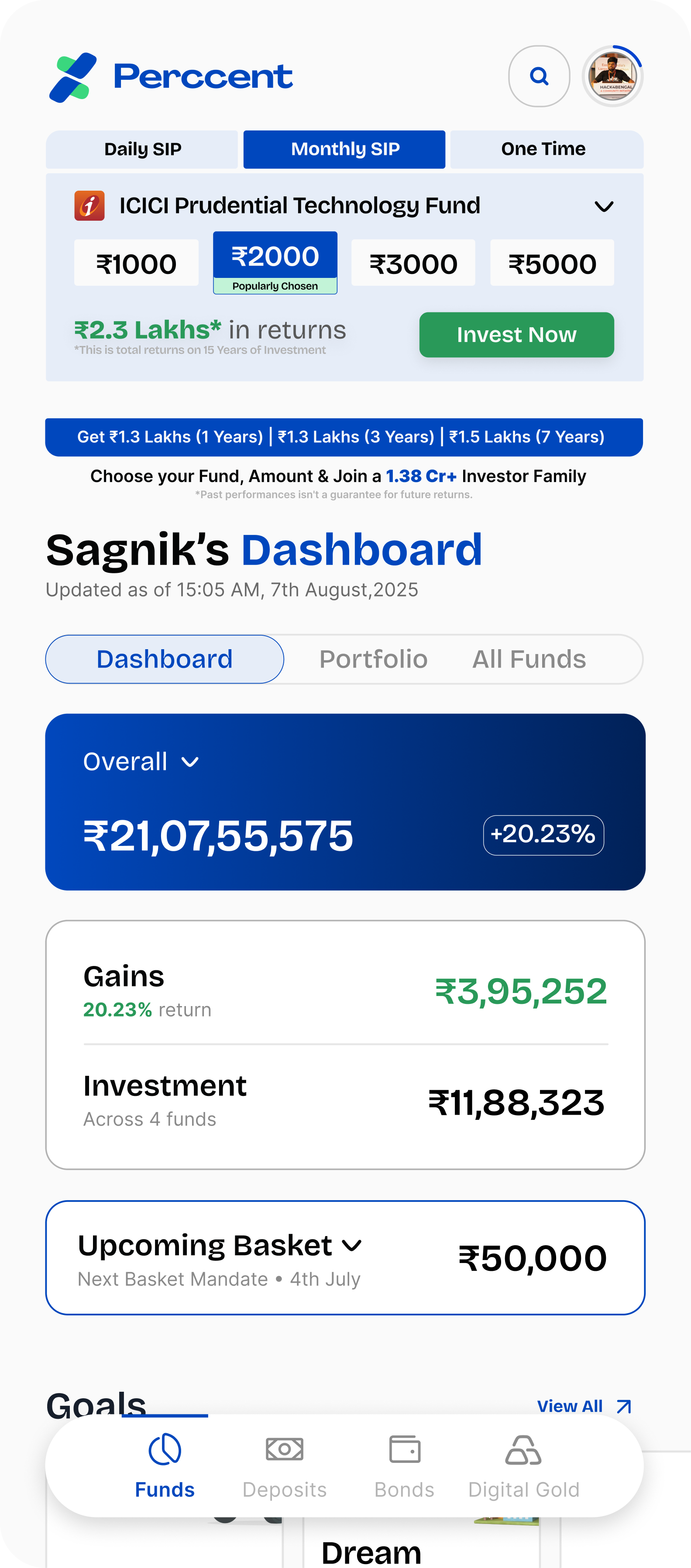
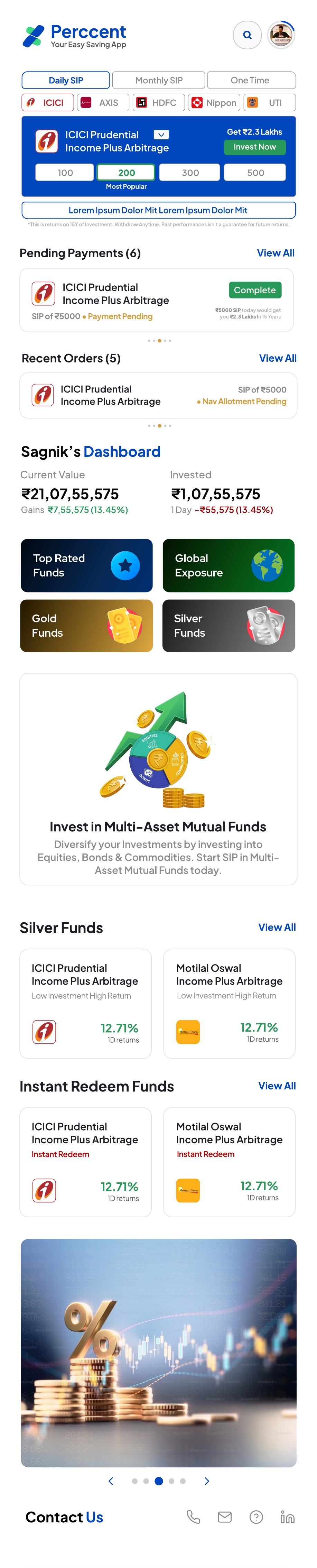
What the customer sees, top to bottom:
| Section | What it does |
|---|---|
| Greeting / header | Customer's name, search-for-funds chip, dark-mode toggle, notification bell, profile photo |
| KYC banner | Appears only if KYC or onboarding is incomplete — tapping it resumes that flow |
| Quick invest card | Promo card with Daily / Monthly / One-Time SIP toggle and pre-set amounts (₹1000, ₹2000 Most Popular, ₹3000, ₹5000) |
| Pending Payments | Shows count + per-row Complete chip when at least one mandate debit / FoT is pending |
| Recent Orders | The customer's latest transactions with status |
| Dashboard value card | Overall portfolio value with day-change %, Gains (return %), Invested |
| Category tiles | Top Rated Funds, Global Exposure, Gold Funds, Silver Funds |
| Curated rails | Multi-Asset banner, Silver Funds, Instant Redeem Funds |
| Contact us | Support entry point (phone / WhatsApp) |
Check whether the KYC banner is still showing on their Home screen. If it is, KYC or onboarding is not finished — that must be completed first.
On the dashboard, the bottom tab bar may show Funds / Deposits / Bonds / Digital Gold (product categories) instead of the global Portfolio / Home / Mutual Funds / Account bar. Both are real navigation — the app exposes a contextual category bar from Home. If a customer says "I can't see my Portfolio tab", ask them to scroll up or tap the Perccent logo to return to the global bar.
Guided walkthrough — Home promo card to investment
The promo card at the top of the Dashboard Home is the fastest path into a first investment. It has three modes — Daily SIP, Monthly SIP, One Time (lumpsum) — and pre-set amount chips (₹1000, ₹2000 Most Popular, ₹3000, ₹5000). This walkthrough is what to read to the customer step by step when guiding them from this card.
Step-by-step what to tell the customer
| App screen | What the agent says |
|---|---|
| SS23-HOME promo card | "Tap the mode you want — Daily SIP, Monthly SIP, or One Time — then tap the amount chip you want, or any other amount. Tap Invest Now." |
| SS27 Lumpsum amount entry (One Time) | "The app shows ₹0 at top. Use the on-screen number pad to type the amount, or tap one of the +1000 / +3000 / +5000 chips. Choose UPI or Net Banking. Tap Proceed." |
| SS30 SIP setup (Daily / Monthly SIP) | "Confirm the SIP amount. For Monthly SIP, pick the date (any 1-28). Pick the mandate (the bank that will auto-debit). Tap Generate OTP." |
| SS43 Create Mandate (only first time, if no mandate exists) | "We need to set up an auto-debit mandate one time. Pick UPI Autopay (faster) or eNACH. Approve in your UPI app or bank — no money debits at setup." |
| SS35 Transaction OTP | "Abhi OTP daaliye — the 6-digit code we just sent to your phone. Tap Verify & Proceed." |
| SS28 Payment method (lumpsum + FoT) | "Tap Pay with UPI to open your UPI app, OR enter your UPI ID and tap Approve Payment. For Net Banking, you'll be redirected to your bank's site." |
| UPI app handoff (external) | "Your UPI app should open with the Perccent request. Approve / Pay. Don't close the app until you see the green confirmation back here." |
| SS36 Transaction status | "You'll see a 24-second progress ring. After that, either Completed (units allocated in T+2) or Failed (we'll auto-refund in 5-7 days). Tap Back to Portfolio — no need to wait, we'll notify you." |
- One Time (Lumpsum): goes directly to amount entry (SS27) — no mandate, no installments. UPI is hidden for amounts > ₹1 L; only Net Banking shows.
- Monthly SIP: picks the day-of-month (1-28 only). Needs an active mandate before debits start. Can optionally enable First Order Today (FoT) to invest the first installment immediately by UPI.
- Daily SIP: debits every business day. No date picker. Mandate must already cover the daily amount × ~22 (one month's worth).
The promo card may show a 5× mandate buffer on the SIP setup screen (eNACH path) — that is the mandate cap, NOT the debit amount. See Status Words → Mandate and the mandate sales script for the agent line.
Mutual Funds / Explore tab
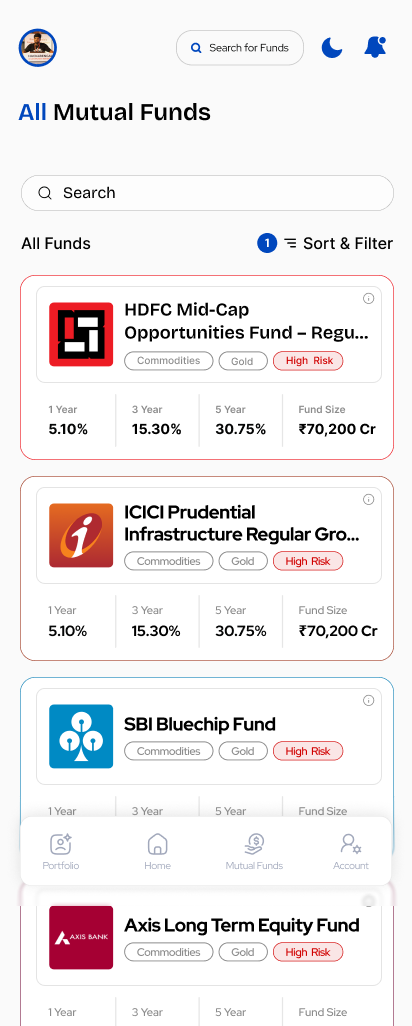
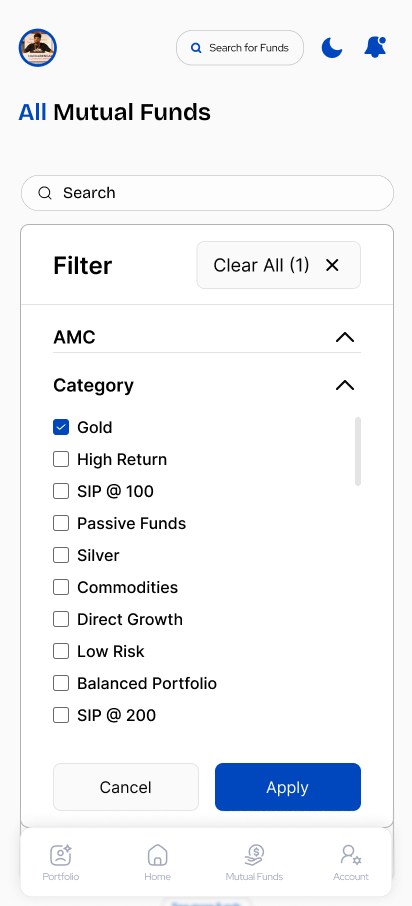
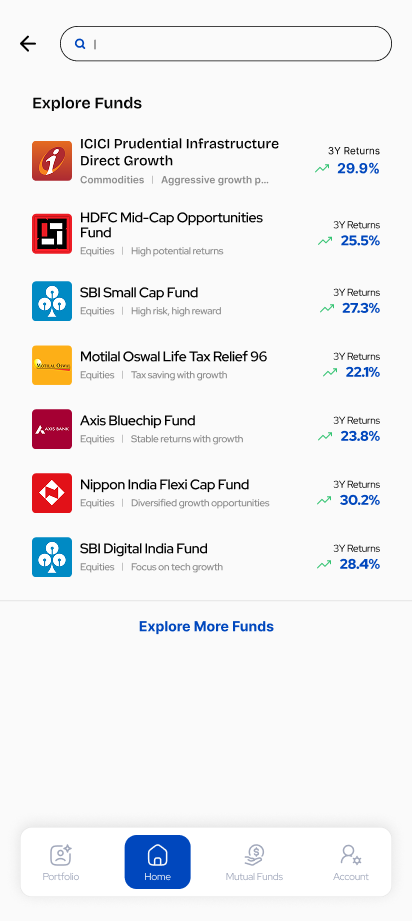
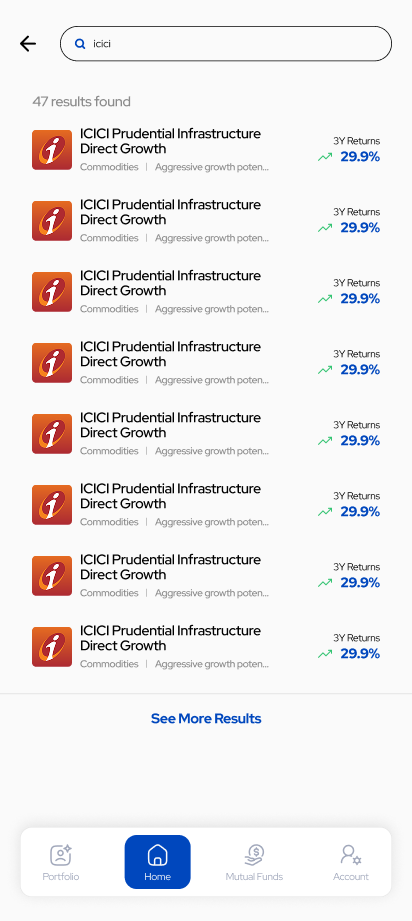
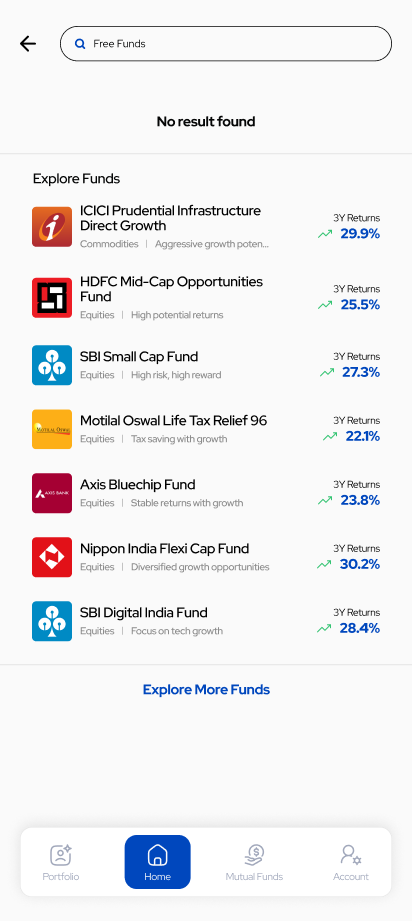
What the customer sees: a searchable, filterable list of all available funds.
| Control | What it does |
|---|---|
| Search box | Find a fund by name |
| Sort & Filter | Narrow by AMC (fund house), Category (Gold, High Return, SIP @100, Passive, Silver, Commodities, Direct Growth, Low Risk, Balanced Portfolio, SIP @200…), risk band |
| Active-filter chip | Shows count (e.g. 1) next to Sort & Filter when filters are applied |
| Fund cards | Each shows fund name, fund-house logo, category tags, High Risk badge, and 1Y / 3Y / 5Y returns with Fund Size |
| Tap a card | Opens the Fund Detail page for that fund |
Keyboard: OS alphanumeric in the search bar; otherwise tap-only.
Common confusion: a customer cannot find a fund. Ask them to search by the exact scheme name and to clear any filters that may be hiding it.
Fund Detail page


What the customer sees on this page (top to bottom):
| Section | Content |
|---|---|
| Header tags | Type tags (e.g. Hybrid · Conservative Hybrid · Moderate Risk) + Morningstar rating |
| Returns | 1-Day and 3-Year returns side-by-side (e.g. 12.71% / 12.71%) |
| NAV chart | Interactive chart with 1M / 6M / 1Y / 3Y / 5Y / MAX range chips and Compare with Benchmark toggle |
| Fund information | Min SIP, Min Lumpsum, Lock-In, NAV, AUM, Expense Ratio, Exit Load, Inception year |
| Investment Objective | Short prose description |
| Calculator | Lumpsum / SIP toggle, sliders for monthly investment and tenure, Total investment, Profit, Total Capital, Absolute return % |
| Lumpsum / SIP CTAs | Two-button row to start an order |
| Asset Allocation | Equity / Debt / Cash percentages with the latest snapshot date |
| Sector Allocation (Equity) | Bars by sector with % |
| Taxation | STCG and LTCG rules with the LTCG exemption (₹1.25 L/yr) |
| Fund Managers | Names + tenure |
| More funds from | Grid of related schemes from the same fund house |
| Button | What it does | Where it leads |
|---|---|---|
| Lumpsum | Start a one-time investment | Lump-sum amount screen |
| SIP | Start a recurring investment | SIP setup screen |
Keyboard: numeric only inside the Calculator (when typing values into the sliders).
NAV (the fund's per-unit price) updates once per business day. It does not change on weekends or market holidays — that is normal, not a bug. See the NAV Not Updated support page.
Not every scheme allows SIP. If the SIP button is not shown for a fund, that scheme simply does not support SIP — the customer can still invest via Lump Sum if lump sum is allowed.