Onboarding Screens
After KYC succeeds, the customer completes investor onboarding — 5 steps that collect the details needed to actually place orders. There is also a risk-profiling questionnaire. Only after onboarding is complete can the customer invest.
If a customer stops partway, the app remembers which step they finished and sends them back to the next incomplete step on their next login. They never lose progress.
Step 1 — Demographic Information
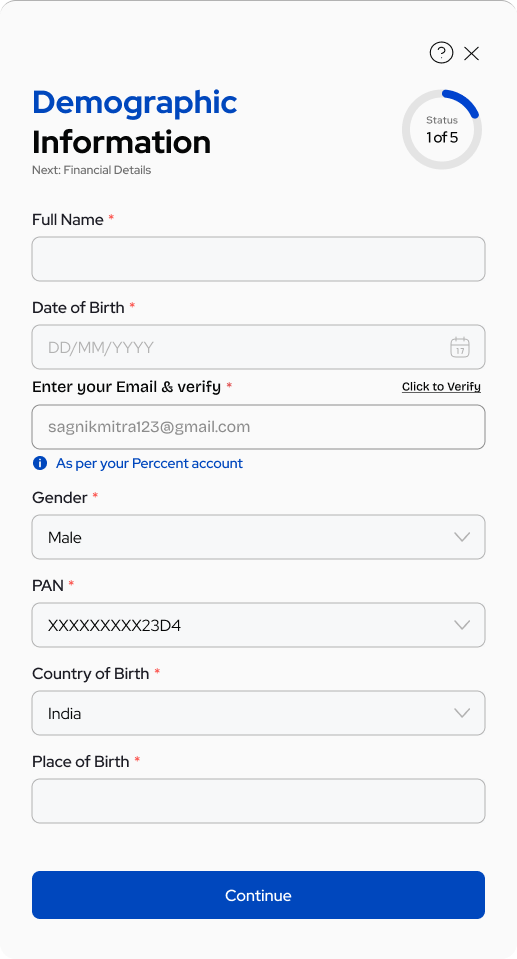
What the customer fills in:
| Field | Notes |
|---|---|
| Full Name | Pre-filled from KYC |
| Date of Birth | Date picker |
| Email + verify | Inline Click to Verify — 6-digit code emailed |
| Gender | Dropdown (Male / Female / Other) |
| PAN | Masked XXXXXXXXX23D4, locked after KYC |
| Country of Birth | Dropdown, defaults to India |
| Place of Birth | Free-text |
Keyboard: OS alphabetic for name & place of birth, OS email for email, OS date picker for DOB.
Step 2 — Financial Details
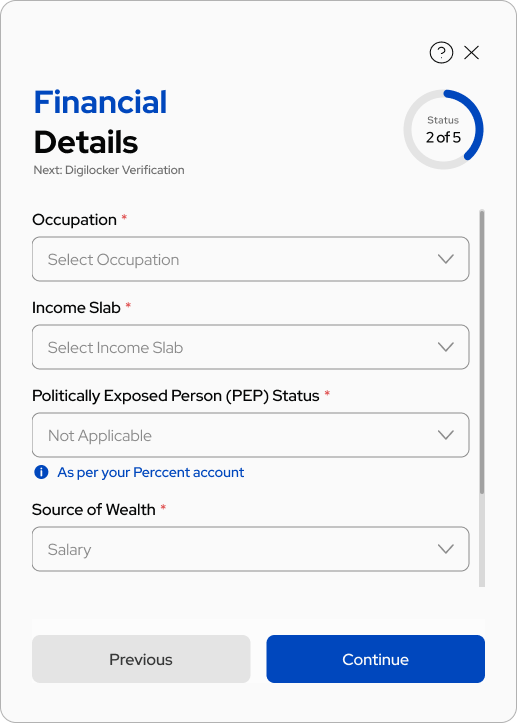
What the customer fills in: Occupation, Income Slab, Politically Exposed Person (PEP) Status (default Not Applicable), Source of Wealth (e.g. Salary, Business, Gift, Rental).
Keyboard: dropdowns only — no free-text fields.
Step 3 — Permanent Address
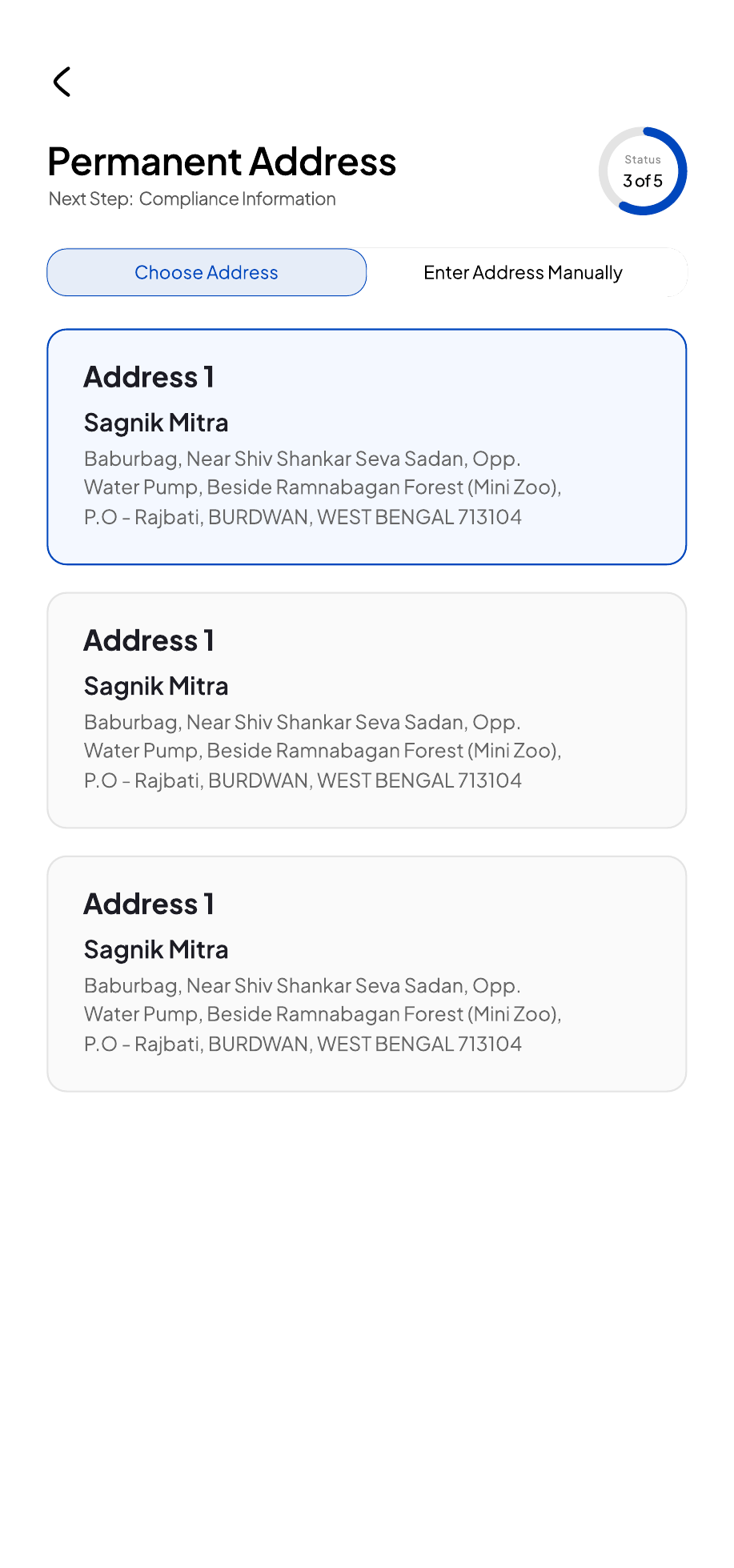
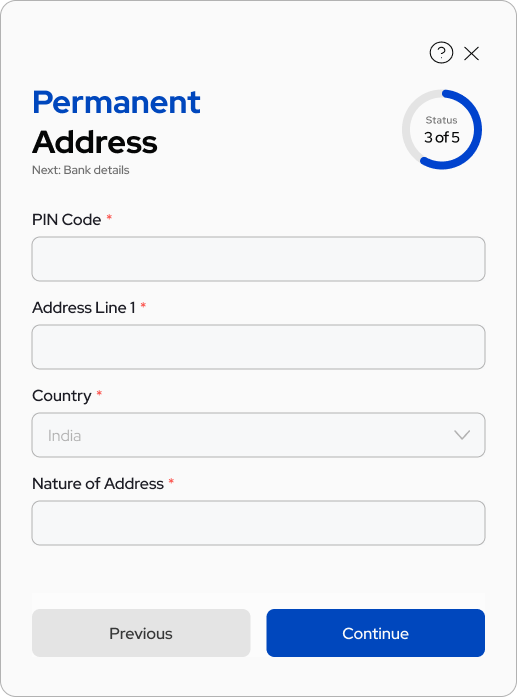
Same screen as the KYC permanent-address step — see the KYC Screens page for the full field list. Toggle between Choose Address (pre-filled from the KRA) and Enter Address Manually.
Step 4 — Bank Details
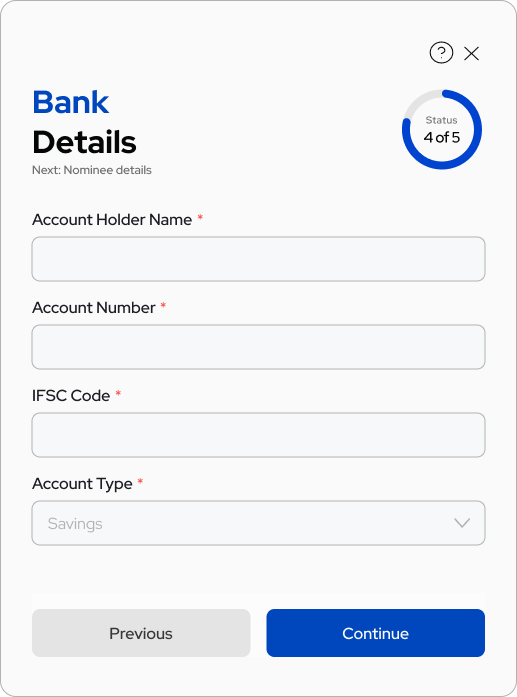
What the customer does: adds a bank account. The account is verified by a penny-drop — a tiny ₹1 deposit confirms the account and the name on it.
| Field | Notes |
|---|---|
| Account Holder Name | Must match the KYC name |
| Account Number | OS numeric keypad |
| IFSC Code | OS alphanumeric, auto-uppercased |
| Account Type | Dropdown — Savings (default), Current, NRE, NRO |
The form does not ask the customer to re-type the account number. Typos go through silently and then fail at penny-drop. On the call, ask the customer to read the account number back to you before they tap Continue.
Verification fails or comes back "uncertain" if the name on the bank account does not match the KYC name. The customer must use a bank account in their own name. See the Bank Account Verification Failed support page.
Step 5 — Nominee
The Nominee step has two visible states — the opt-in / opt-out choice, and an expanded view once the customer chooses to add nominees.
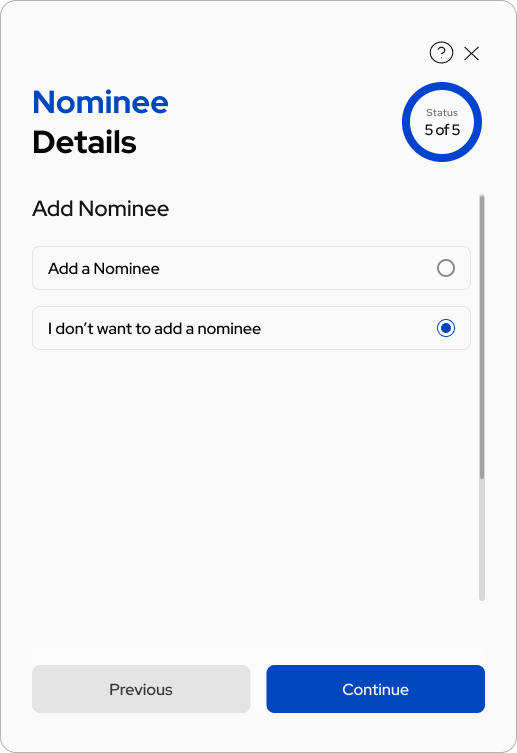

Opt-out: the customer selects I don't want to add a nominee — both choices are recorded with the customer's consent.
Add nominee: each nominee captures Name, Relationship, PAN, DOB, Allocation %, Phone, Email, Address (with an "Address same as permanent address" checkbox). Up to 4 nominees can be added (Nominee 1 / 2 / 3 / 4 cards) and the allocation percentages across all nominees must total 100%.
Keyboard: alphabetic + OS date picker + OS numeric.
Risk Profiling
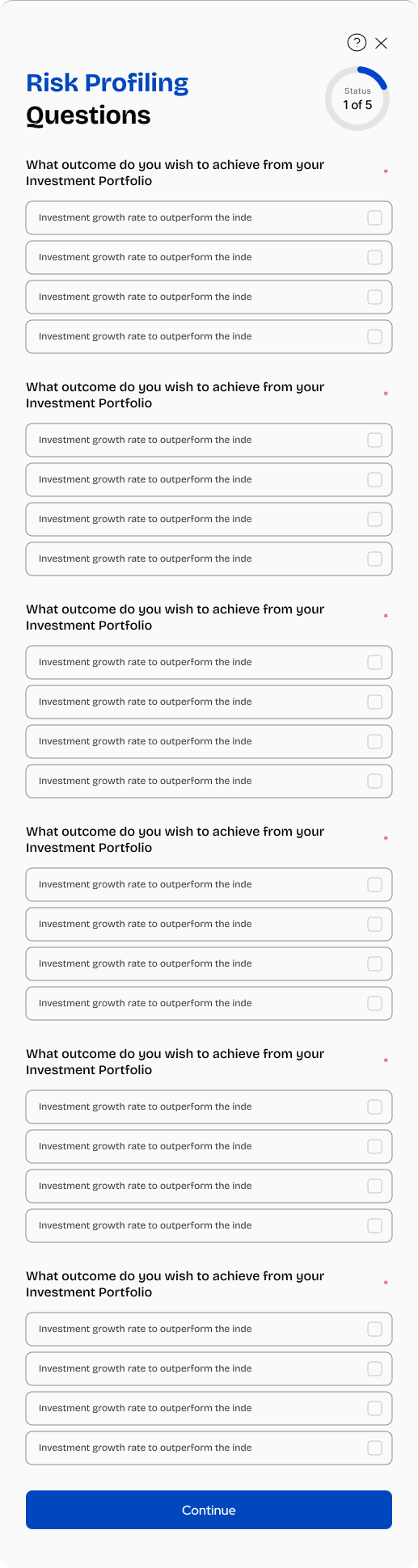
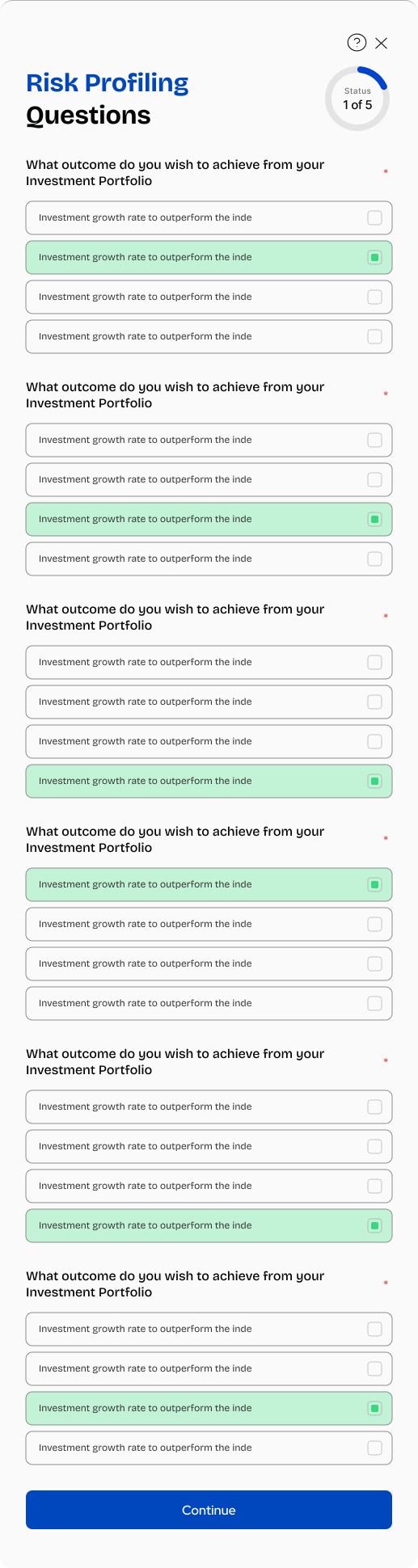
What the customer sees: a short questionnaire in two parts — Risk Capacity (how much risk they can afford) and Risk Attitude (how much risk they are comfortable with). In PCC there is no separate result screen after submit — the answers are saved, the risk category is updated in the background, and onboarding continues / exits.
Where to find it later: the customer can re-take the risk profile any time from Account → More Details.
Keyboard: none — radio chips only.
On the current build, all four options read "Investment growth rate to outperform the inde…" — that text is placeholder content trimmed at the column width. Real question text loads from the server once configured. Tell the customer to tap an option even if the wording is cut off — selection still saves.
The risk category guides which funds are suitable for the customer. A customer asking "which fund should I pick?" should be pointed to their risk profile — but agents must not give investment advice.