Investment Screens
These are the screens a customer goes through to put money in — Lump Sum and SIP — plus the payment and mandate screens. This is where most "my money is stuck" calls come from, so know these screens well.
Agent walkthrough — fund tapped to confirmation
Once the customer taps a fund on Explore or the Home promo card and presses Lumpsum or SIP, the app moves through 5-7 screens in a fixed order. Read out the cue per screen — the customer will see exactly what you describe.
| Order | Screen ID | What is on the customer's screen | What to tell them |
|---|---|---|---|
| 1 | SS27 | Lumpsum amount entry — big ₹0, quick-add chips +1000/+3000/+5000, payment-method picker, in-app number pad | "Type the amount or tap a chip. Pick UPI or Net Banking. Tap Proceed." |
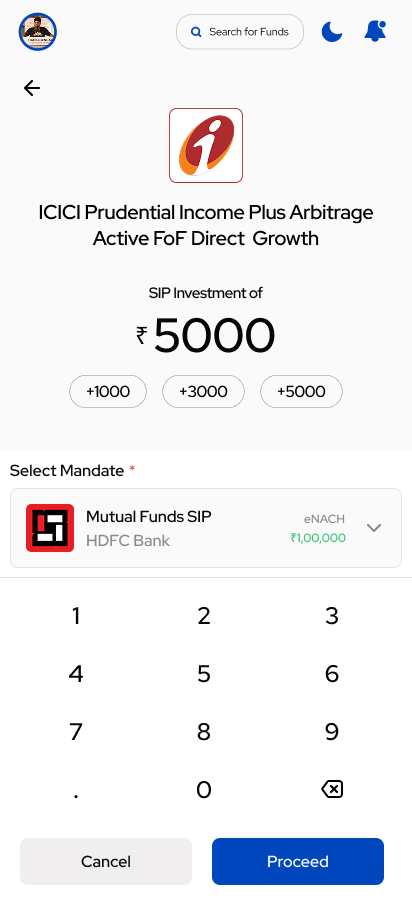
| 1' | SS30 | SIP setup — amount, frequency (Monthly/Daily), autopay date 1-28, mandate selector | "Confirm the amount. Pick the SIP date — any 1 to 28. Confirm the mandate. Tap Generate OTP." |
| 2 | SS43 (only if no mandate yet) | Create new mandate — UPI Autopay vs eNACH, bank selector, amount field | "We need a one-time auto-debit permission. UPI Autopay activates same day; eNACH takes 2-5 business days. No money is taken now." |
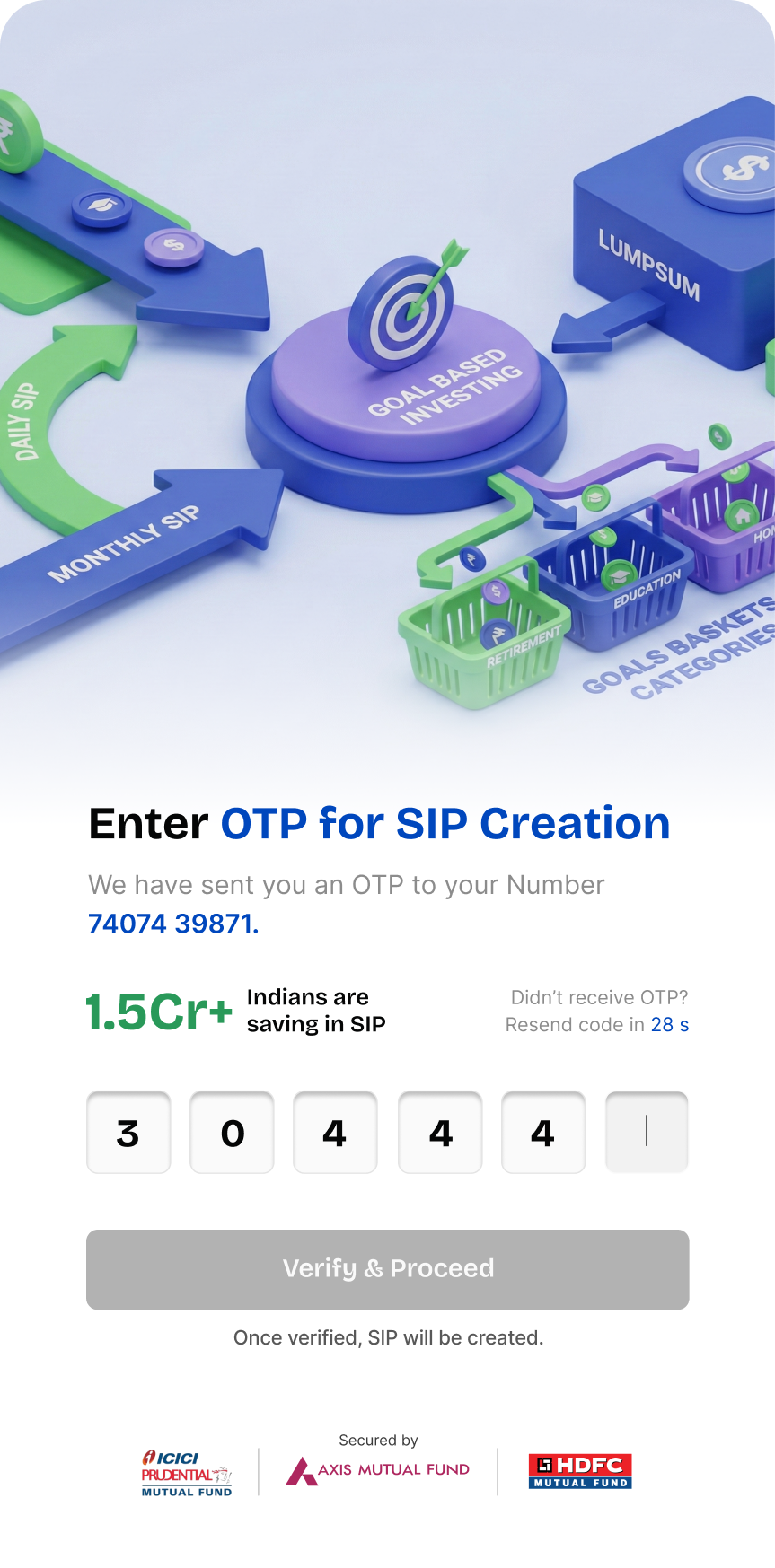
| 3 | SS35 | Transaction OTP — 6-digit boxes, 28-second resend timer | "Abhi OTP daaliye — the 6-digit code we just sent to your phone. Tap Verify & Proceed." |
| 4 | SS28 (lumpsum / FoT only) | Payment method — UPI default with Pay with UPI CTA, Net Banking fallback | "Tap Pay with UPI — your UPI app will open. Approve there." |
| 5 | SS44 | Brief overlay — Redirecting to your UPI provider or Redirecting to your Bank provider | "Don't close the app. The UPI app / bank page is opening." |
| 6 | External UPI app or bank page | Customer's GPay / PhonePe / bank netbanking | "Approve there. Come back to Perccent — don't close." |
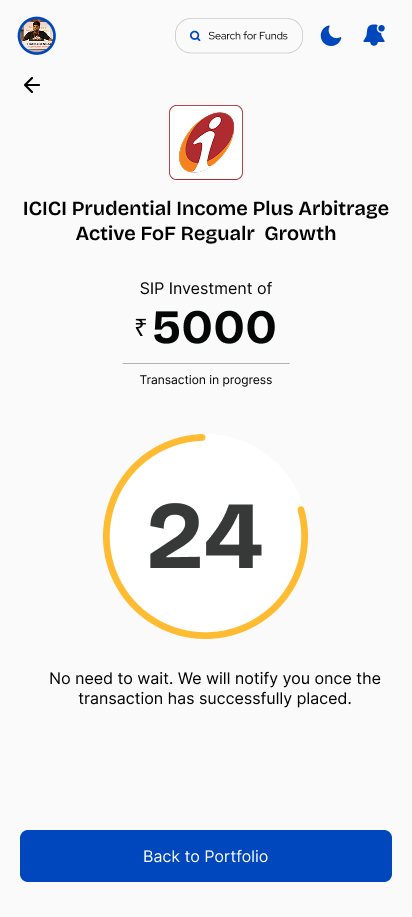
| 7 | SS36 | Status — 24-second progress ring → Completed / Failed / In progress | "Wait for the ring or tap Back to Portfolio. We'll send a notification when done." |
That is SS35 Transaction OTP — different from the phone-login OTP at SS03. Transaction OTP authorises the order itself; it always comes after mandate creation / amount entry. Read out: "Open your SMS — there should be a 6-digit code from Perccent or BSE. Type it in the boxes."
Lump Sum — amount entry
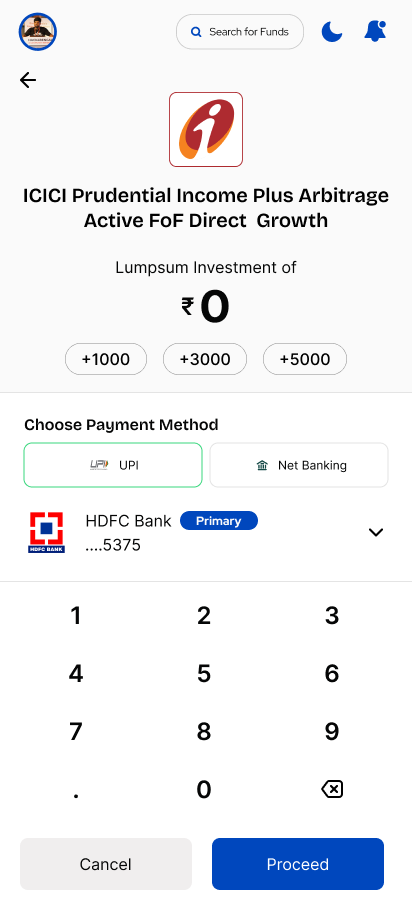
What it is: a one-time investment.
What the customer sees: the fund name and logo, a giant ₹0 amount that grows as the keypad is tapped, three quick-add chips (+1000, +3000, +5000), a Choose Payment Method row with UPI (default, selected) and Net Banking, the primary bank account (e.g. HDFC Bank …5375 — Primary), and a 3-column in-app numeric keypad with 0–9, . (decimal) and ⌫ backspace.
| Button | What it does |
|---|---|
| Proceed | Creates the order and moves to payment |
| Cancel | Cancels |
Keyboard: custom in-app numeric pad — the OS keyboard does not appear. The decimal point is enabled.
SIP — setup
The SIP setup screen collects frequency, start date, mandate and (optionally) First Order Today in one form.
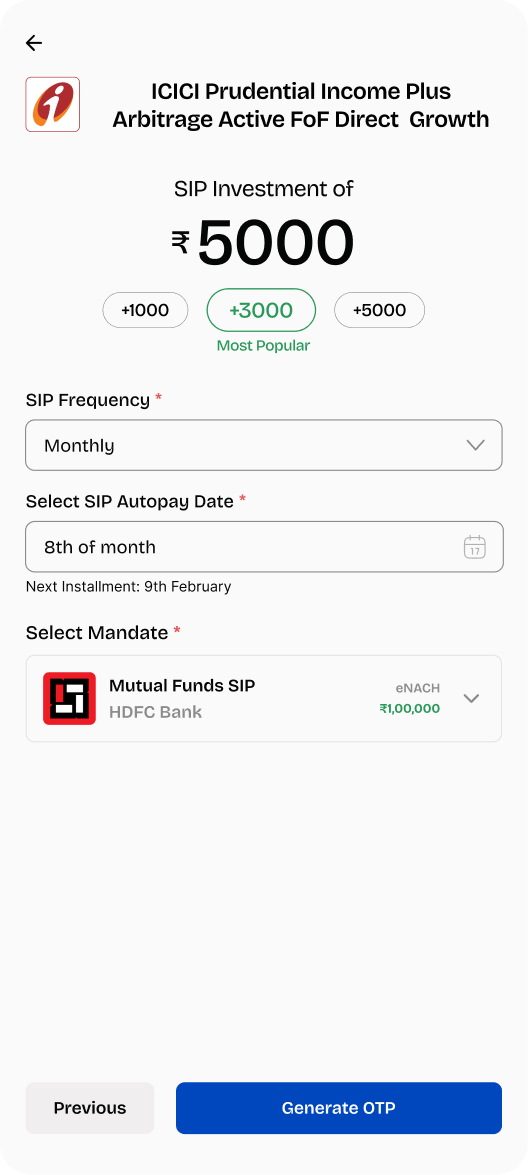
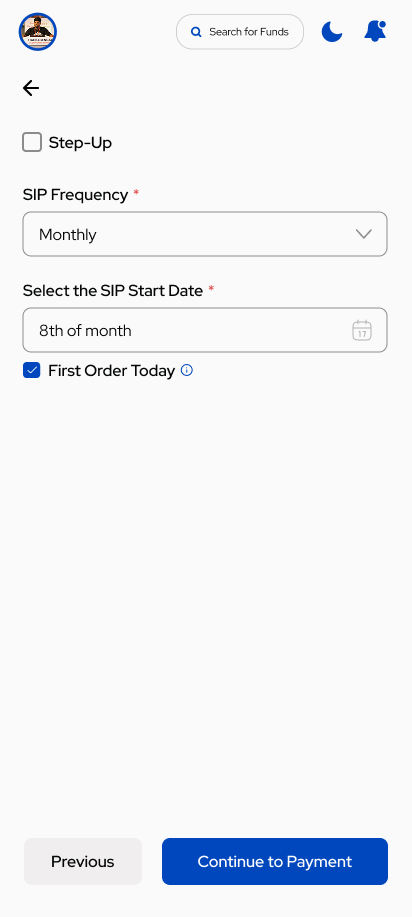
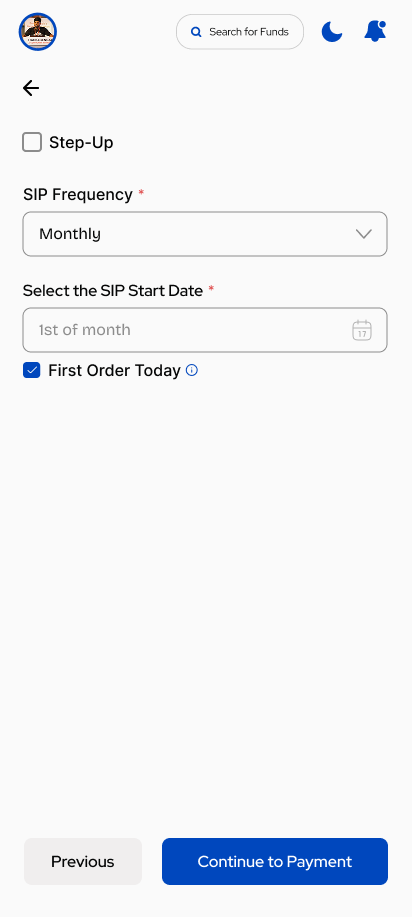
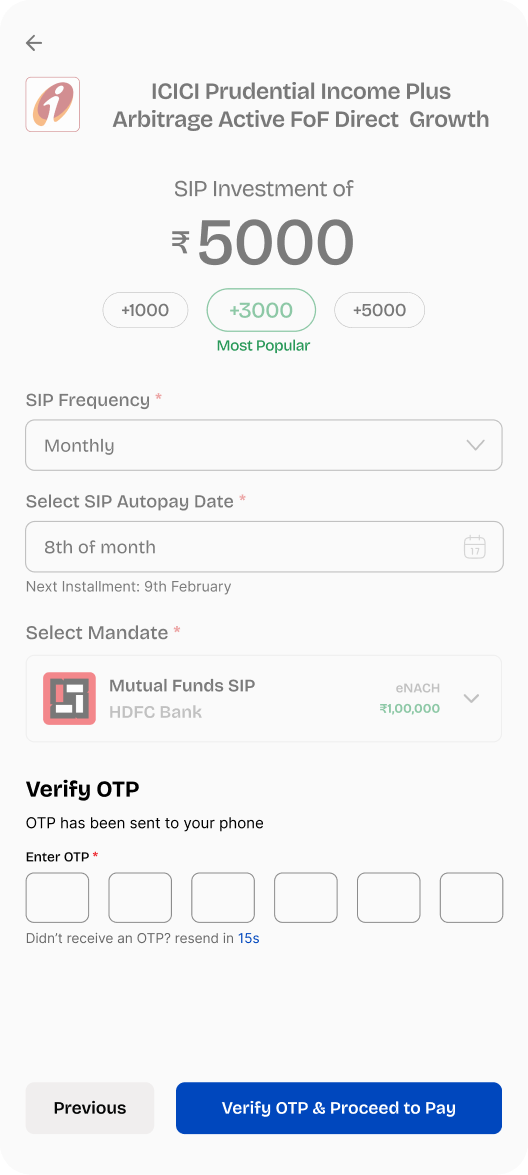
What it is: a recurring investment. A SIP needs an active mandate (see below).
What the customer chooses:
| Choice | Options |
|---|---|
| SIP Frequency | Monthly (invests once a month) or Daily (invests every business day) |
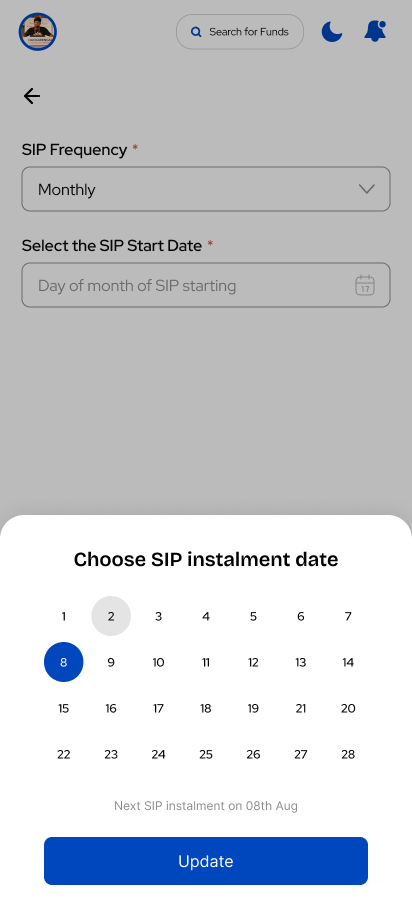
| SIP Start Date | For Monthly SIP, the customer picks a day 1–28. Daily SIP needs no date. |
| Amount | At least the fund's minimum SIP amount — quick chips +1000, +3000 (Most Popular), +5000 |
| Select Mandate | Existing mandate card (e.g. Mutual Funds SIP — HDFC Bank — eNACH ₹1,00,000) |
| Step-Up | Optional checkbox to auto-increase the SIP amount |
| First Order Today | Optional checkbox to pay the first installment immediately |
| Button | What it does |
|---|---|
| Create Mandate | Shown if there is no active mandate — takes the customer to set one up |
| Generate OTP | Shown if a mandate is ready — moves to the consent OTP |
| Continue to Payment | Shown when First Order Today is selected — moves straight to payment |
Keyboard: in-app numeric for amount; bottom-sheet calendar for date; dropdowns for frequency / mandate. No OS keyboard.
Monthly SIP = money is invested once a month on a chosen date — best for salaried customers. Daily SIP = a small amount invested every business day — gives finer averaging. Both need a mandate.
The SIP picker caps at 28 so the mandate works in every calendar month — February has no 29/30/31. The customer can change this later from Account → Mandate Details.
Mandate — create & authorise
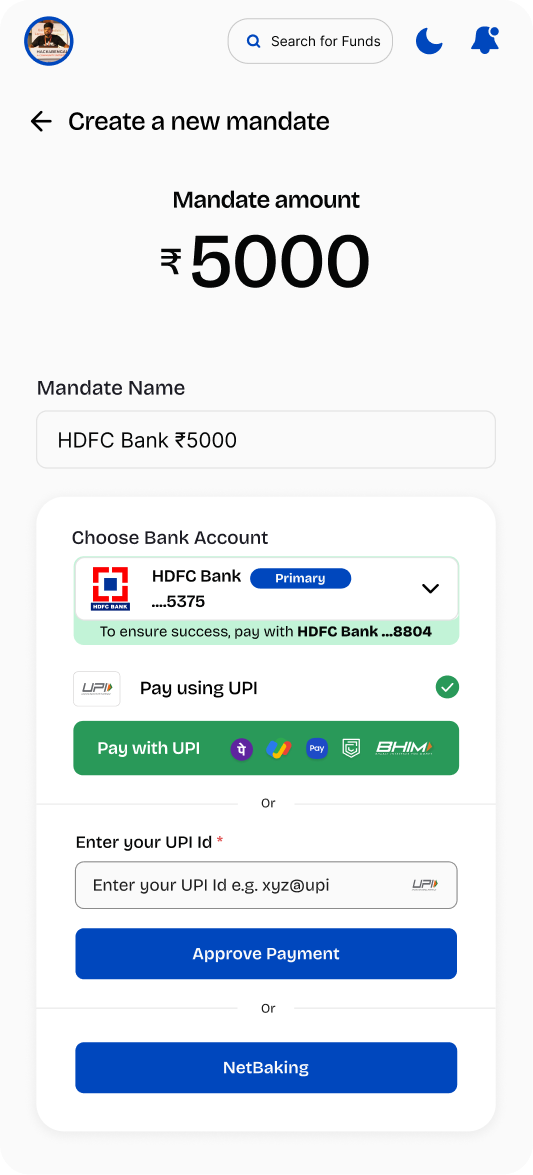
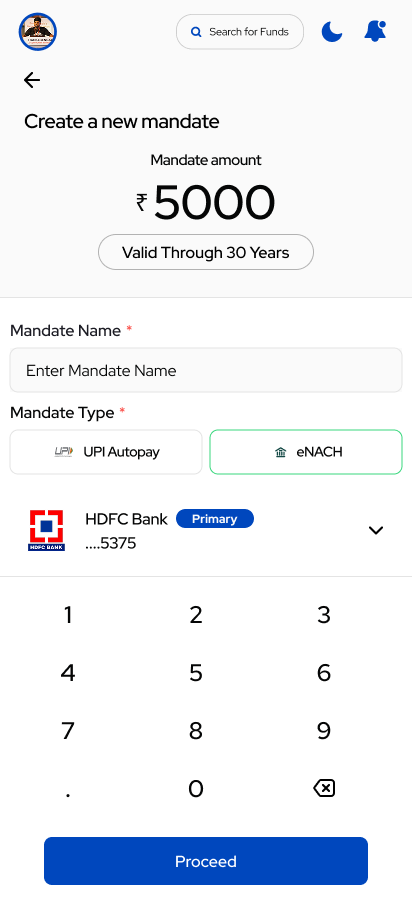
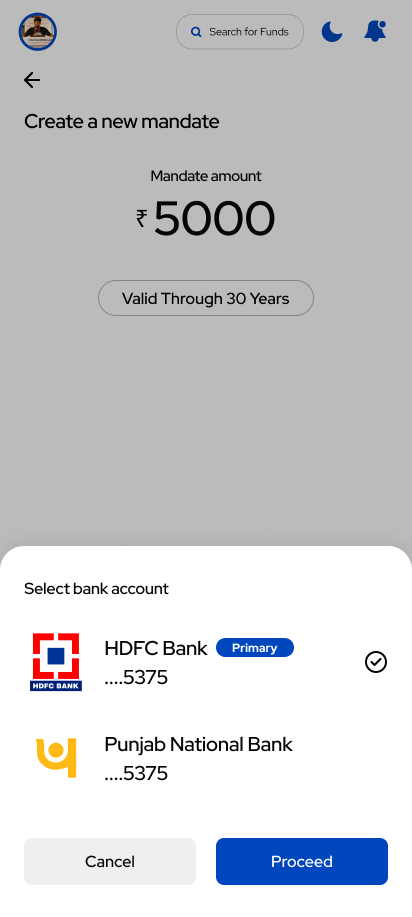
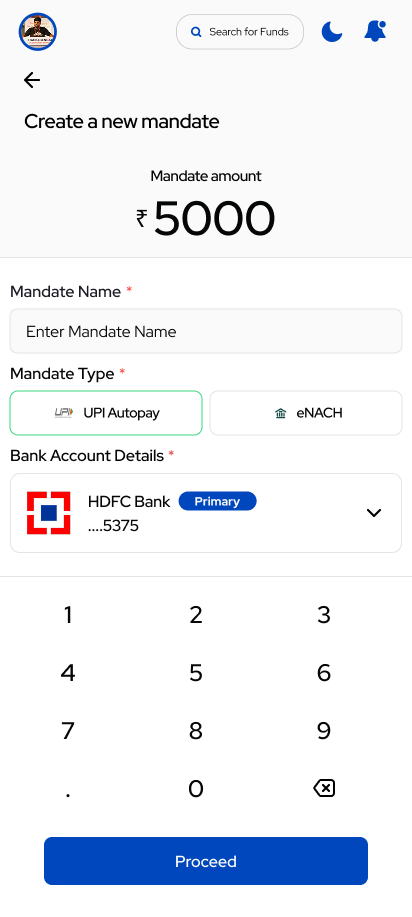
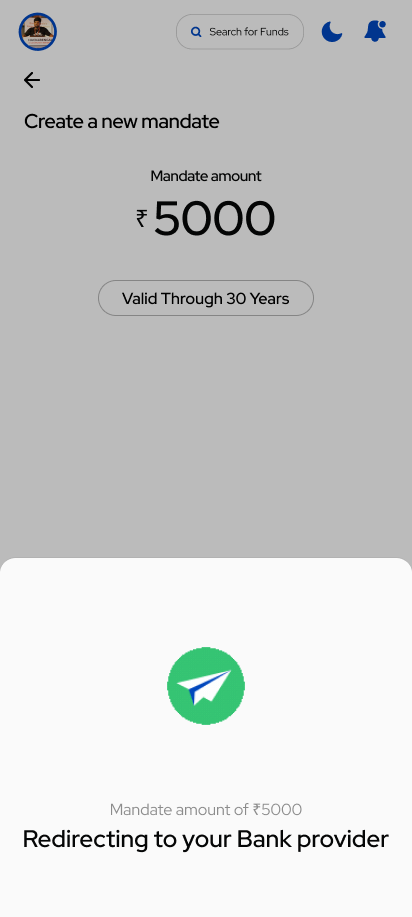
What a mandate is: a one-time permission the customer gives their bank to auto-debit for SIP installments.
| Mandate type | How it is approved | How long to activate |
|---|---|---|
| eNACH | Through netbanking / debit card | 2–5 business days |
| UPI Autopay | Approved inside the customer's UPI app | Usually faster, often same day |
Mandate status words: CREATED → RECEIVED → APPROVED → SUBMITTED, or REJECTED, CANCELLED. A SIP only debits once the mandate is APPROVED.
Keyboard: in-app numeric for amount; alphanumeric for the Mandate Name free-text field.
If the mandate shows REJECTED, the bank declined it. Ask the customer to create a new mandate, and suggest UPI Autopay which usually activates faster. See the Mandate Activation Failed support page.
Two uploaded images were not added to this guide: a black overlay note that says "Just for Demo…" and a binary chooser with "Mandate Not There / Mandate is There". Both are internal/demo artifacts, not customer-facing app screens.
First Order Today (FoT)
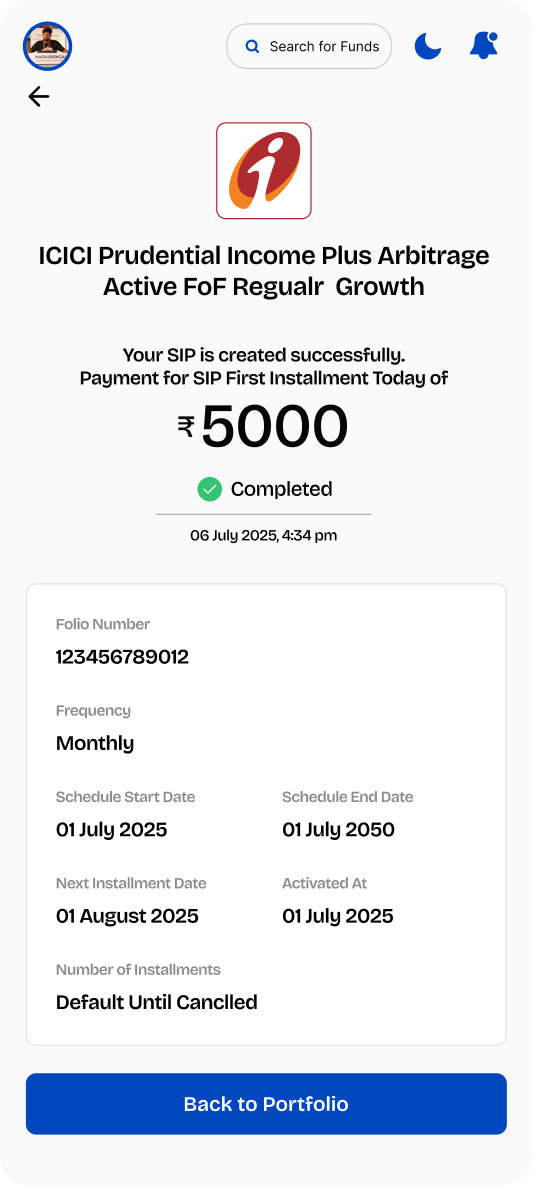
What it is: when a customer starts a SIP, they can choose to pay the first installment immediately by UPI, instead of waiting for the first mandate debit date. This is called First Order Today.
Why it exists: it lets the customer start investing the same day and catch the current day's fund price (NAV) window.
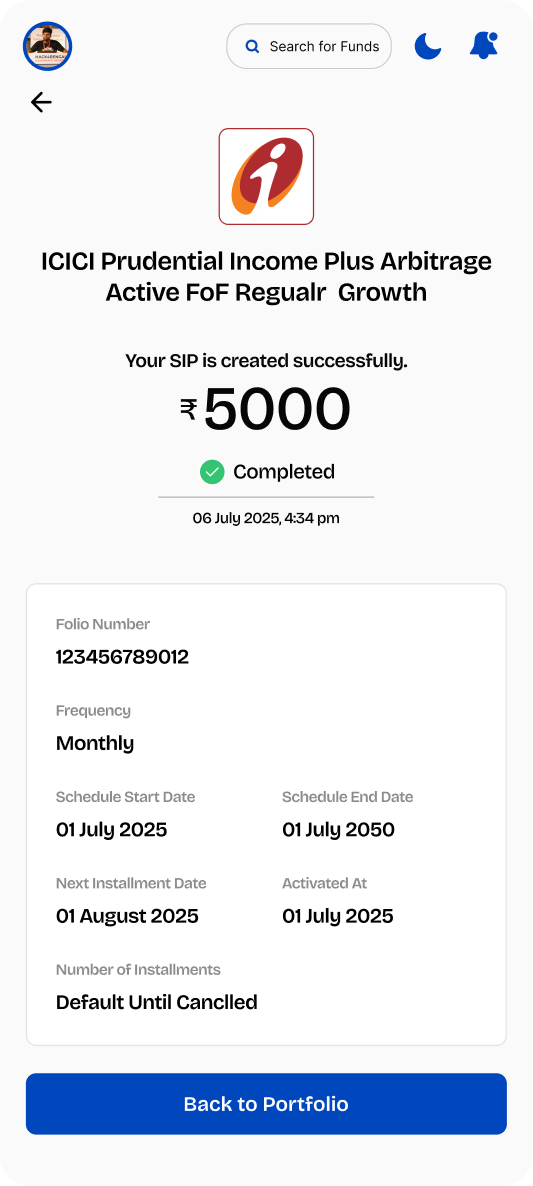
What the success screen shows: Folio Number, Frequency (Monthly), Schedule Start Date, Schedule End Date (typically Start + 25 years), Next Installment Date, Activated At, Number of Installments (Default Until Cancelled).
On the call: if a customer says "I started a SIP and money was taken today" — that is the FoT first installment. It is expected, not an error.
Payment screens
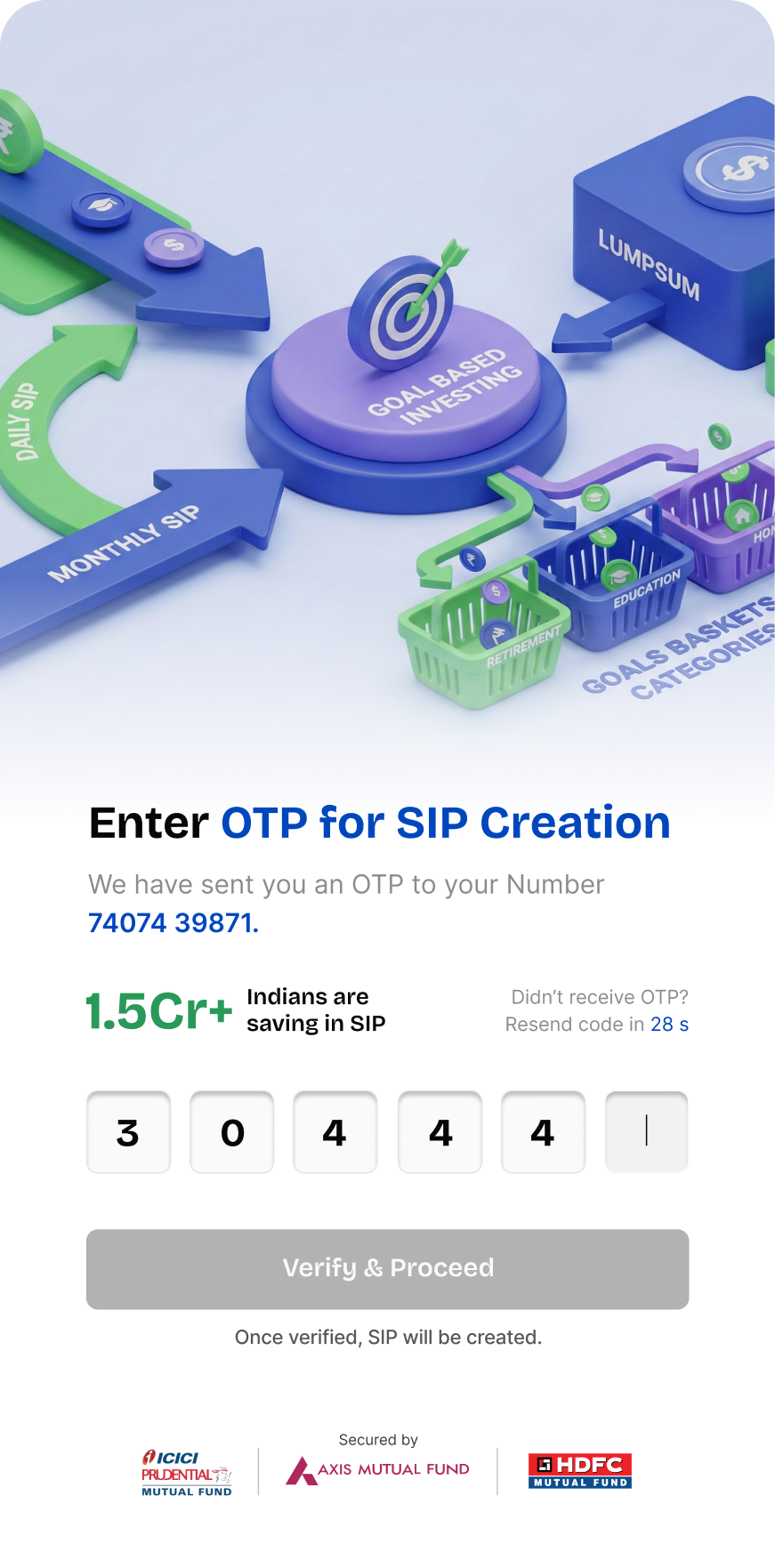
Payment methods: UPI (default) and NetBanking (and mandate auto-debit for SIP installments).
- UPI: the app opens the customer's UPI app to approve the payment, then shows a timer and waits for confirmation. The screen also pre-fills a hint like "To ensure success, pay with HDFC Bank …8804" to nudge the customer to use the same bank as their KYC bank.
- NetBanking: the app opens the bank's page in a browser; the customer logs in and pays.
| Screen / button | What it does |
|---|---|
| Pay with UPI | Launches the customer's installed UPI app (PhonePe, GPay, Paytm, BHIM) |
| Enter your UPI Id | Free-text fallback for collect-request |
| Approve Payment | Sends the collect-request to the typed UPI ID |
| NetBanking | Hands off to the bank page |
Keyboard: OS alphanumeric for the UPI Id field; none otherwise.
First ask: did the bank actually debit the money? If not debited, the customer can simply retry. If debited but the order failed, any debit without a matching order is auto-refunded in 5–7 business days. See the Payment Failed support page.
Transaction OTP
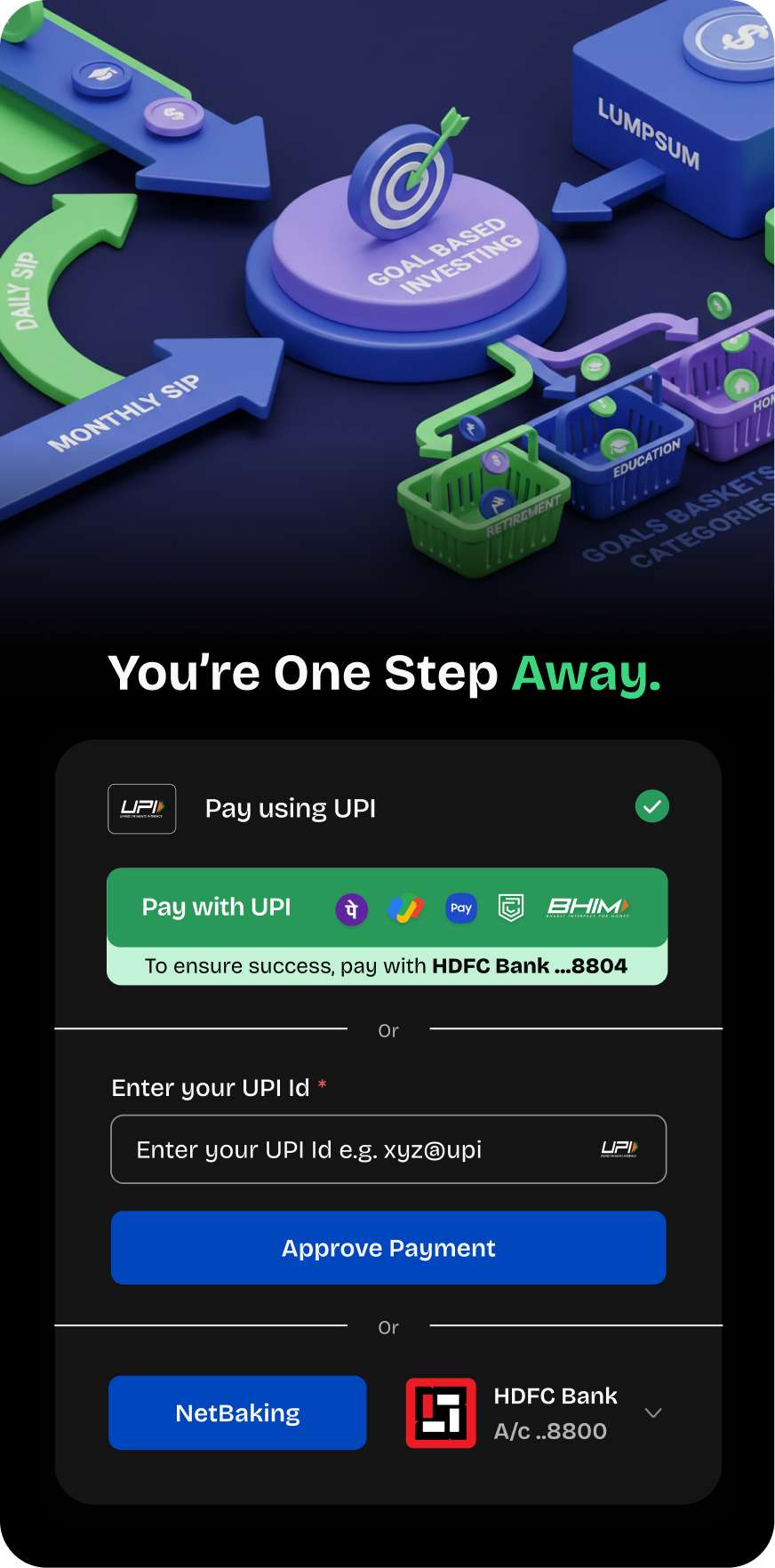
What the customer sees: "Enter OTP for SIP Creation", the masked phone number, 6 boxes for the OTP, a Didn't receive OTP? Resend code in 28 s helper, and a Verify & Proceed CTA (greyed until 6 digits are typed). Trust copy below: "1.5Cr+ Indians are saving in SIP."
Keyboard: OS numeric. Boxes auto-advance.
Transaction Status screen
The status screen has the same structure for Lumpsum and SIP, with three states each — in progress, completed, failed.
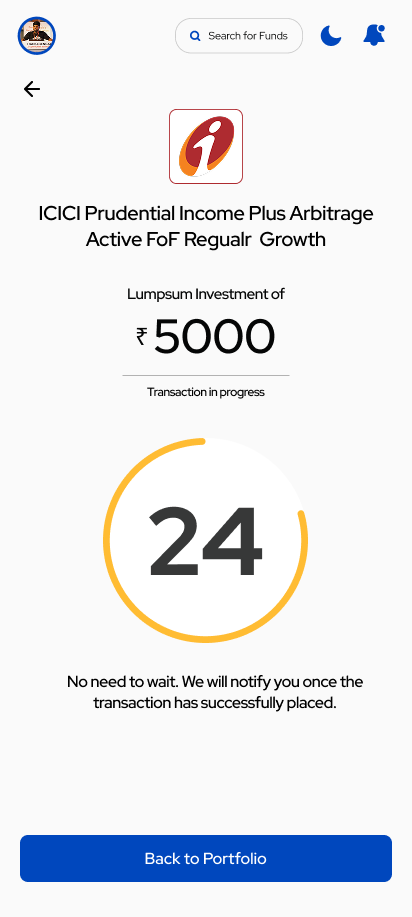
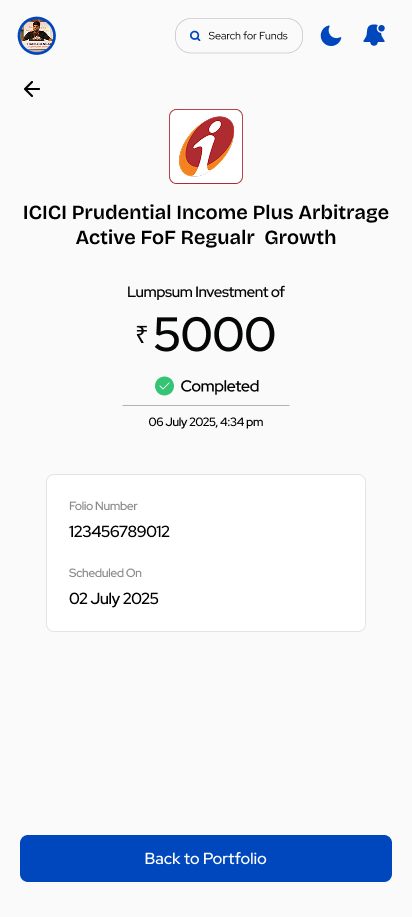
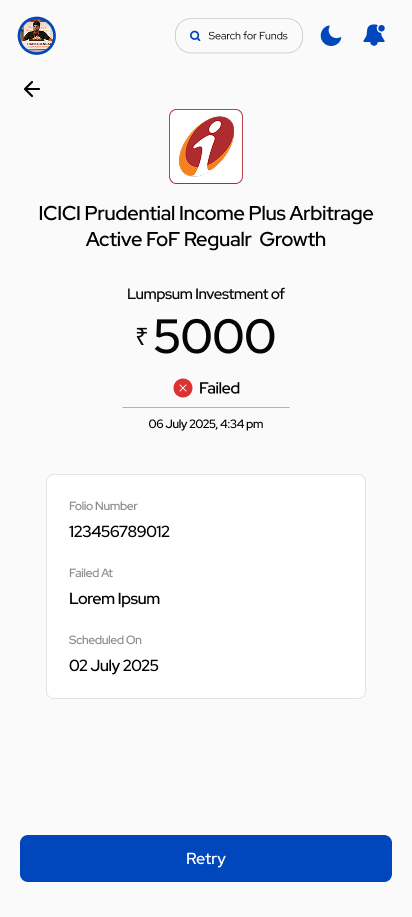
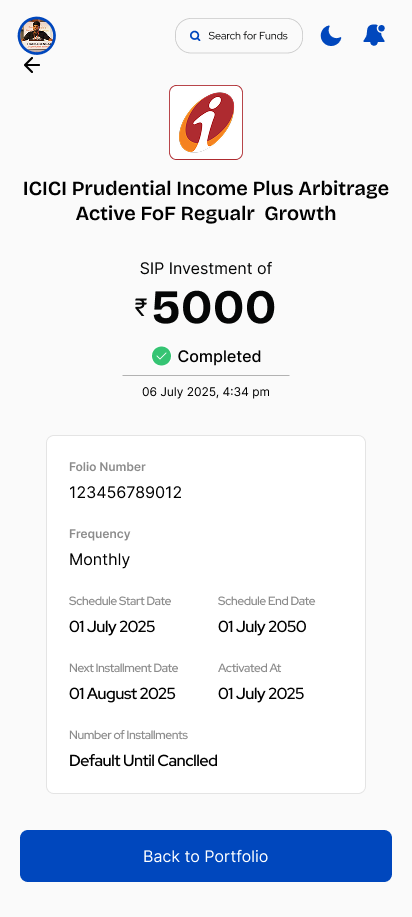
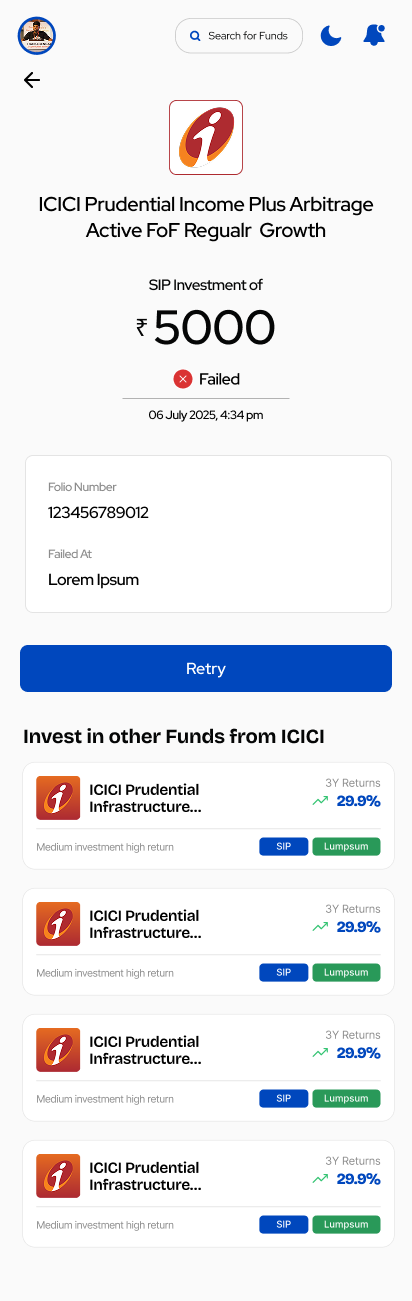
On the SIP-Failed screen: the red ✕ status, Folio Number, Failed At (currently shows Lorem Ipsum placeholder text — real reason will populate from BSE/registrar), a full-width Retry CTA, and below it Invest in other Funds from ICICI — four cross-sell cards each with SIP and Lumpsum chips.
What the customer sees: the result of their order — the status word and the amount.
Order status words and what to tell the customer:
| Status | Meaning |
|---|---|
| Pending / Initiated | Order just created — wait |
| Confirmed | Order confirmed |
| Submitted | Sent to the exchange (BSE) — normal interim state, units allotted on the NAV cycle |
| Successful / Completed | Done — units allotted |
| Failed | Order failed |
| Cancelled | Order cancelled |
Submitted is normal — the order has reached BSE and is awaiting the NAV/allotment cycle. Allow 1–2 business days. Only escalate if it is still Submitted after 3 business days. See the Order Stuck in Submitted support page.
The progress ring counts down ~24 seconds while the app polls the registrar. The screen also says "No need to wait. We will notify you once the transaction has successfully placed." — customers can safely tap Back to Portfolio and wait for a push notification.